
How to Back Up and Restore Your Linux VPS Using rsync and dd
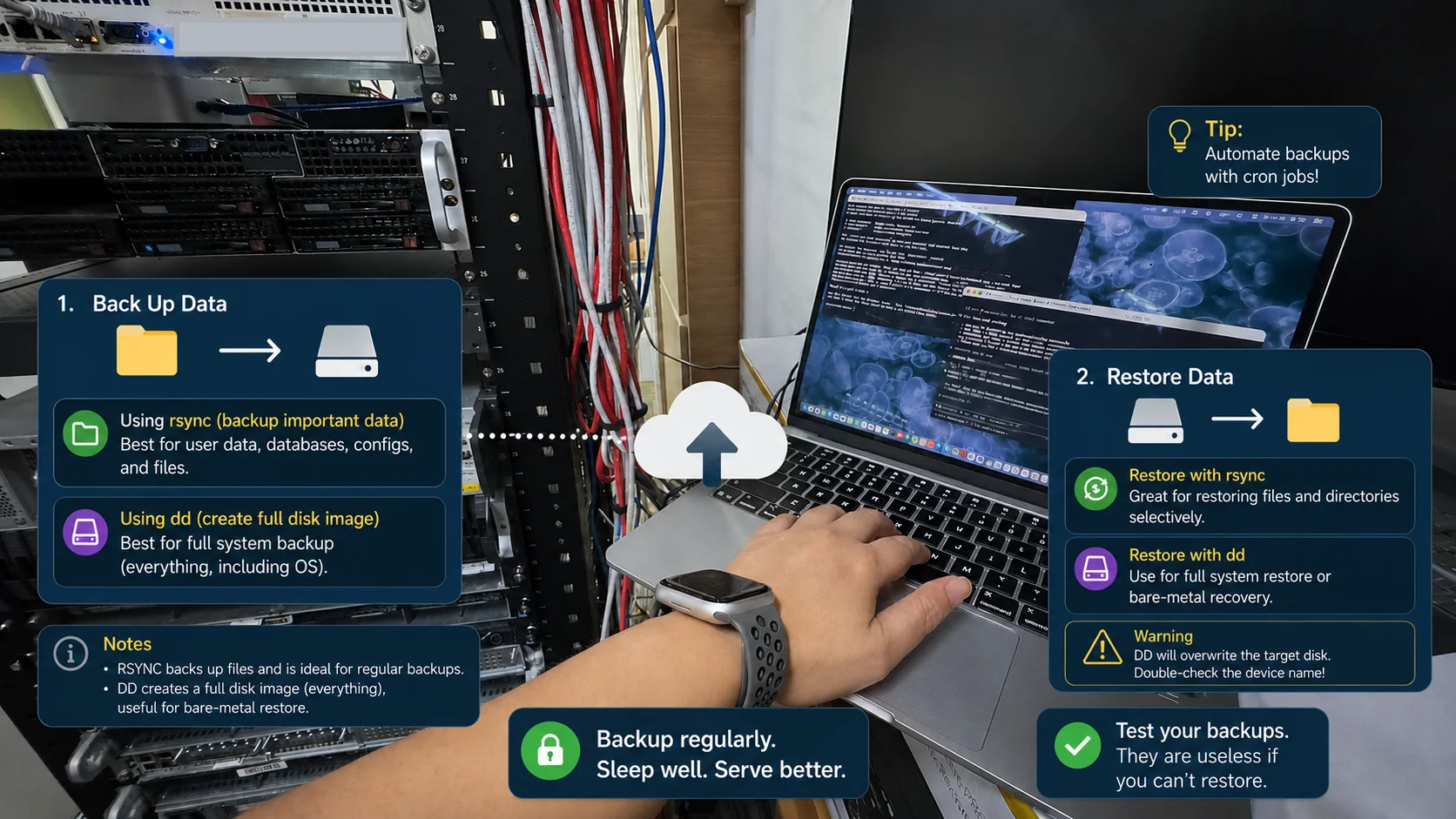
Nobody thinks about backups until something goes wrong.
A failed update, accidental file deletion, corrupted configuration, or a mistyped command can quickly turn a working VPS into a stressful recovery situation. Whether you're hosting a website, application, database, or development environment, having a reliable backup strategy is essential.
The good news is that you don't need expensive software to protect your VPS. Two built-in Linux tools — rsync and dd — can handle most backup and recovery scenarios. In this guide, we'll show you how to use both tools to back up and restore your Linux VPS.
Why VPS Backups Matter
A proper backup strategy helps protect your VPS against:
- Accidental file deletion
- Failed software updates
- Configuration errors
- Malware or ransomware attacks
- Application failures
- Data corruption
The goal isn't just creating backups — it's ensuring you can recover quickly when something goes wrong.
File-Level Backup with rsync
For regular backups of websites, application files, and data, rsync is often the preferred choice. It only transfers changed files after the initial backup, making it efficient and suitable for scheduled backups.
Install rsync
Ubuntu / Debian
sudo apt update
sudo apt install rsync -y
CentOS / AlmaLinux
sudo dnf update
sudo dnf install rsync -y
Create a Local Backup
To back up files to another location on the same VPS:
rsync -av /your/files/ /backup/destination/Create a Remote Backup
To back up files to another server over SSH:
rsync -avz --progress \
  -e "ssh -p 22" \
  /your/files/ \
  username@backup-server:/backup/destination/
Parameters:
-apreserves permissions, ownership, and timestamps.-venables verbose output.-zcompresses data during transfer.--progressdisplays transfer progress.
Watch Out for the Trailing Slash
These two commands behave differently:
rsync -av /your/files/ /backup/Copies the contents of the directory.
rsync -av /your/files /backup/Copies the directory itself as a subfolder.
It's a small detail that can save a lot of confusion during restores.
Restore Files
Restoring files is simply running rsync in the opposite direction:
rsync -avz /backup/destination/ /your/files/For remote restores:
rsync -avz --progress \
  -e "ssh -p 22" \
  username@backup-server:/backup/destination/ \
  /your/files/
Full VPS Backup with dd
While rsync works at the file level, dd creates a complete disk image of your VPS, including:
- Operating system
- Installed applications
- Configuration files
- User data
- Partition information
This is useful before major operating system upgrades, application migrations, or when creating a full-system recovery image.
Important Precautions
Running dd on a live OS disk may produce an inconsistent filesystem image due to ongoing write activity. We recommend using rescue mode or another offline environment to minimize writes and ensure consistency.
dd performs a raw block-by-block copy of the entire disk, including empty space, which can make the process time-consuming.
Before running any dd command, verify your disk device:
lsblkAlways double-check the device name before proceeding. An incorrect destination device can overwrite data permanently.
Create a Full Disk Image
For the most consistent backup, boot into rescue mode if available.
Then stream the image directly to a remote backup server:
dd if=/dev/vda bs=64K status=progress \
| gzip -1 \
| ssh root@backup-server "cat > /backup/vps-vda.img.gz"
This command:
- Reads the entire disk.
- Compresses the data.
- Transfers it securely over SSH.
- Stores the image on a backup server.
Restore a Disk Image
Boot into rescue mode and run:
ssh root@backup-server "cat /backup/vps-vda.img.gz" \
| gunzip \
| dd of=/dev/vda bs=64K status=progress
After restoring, verify that the VPS boots correctly. Depending on your operating system and boot configuration, you may need to reinstall or update the bootloader.
rsync vs dd: Which Should You Use?
| Feature | rsync | dd |
|---|---|---|
| File-level backup | Yes | No |
| Incremental backup | Yes | No |
| Restore individual files | Yes | Difficult |
| Full system image | No | Yes |
| Storage efficient | Yes | No |
| Backup speed | Faster | Slower |
| Disaster recovery | Good | Excellent |
Choose rsync if:
- You need regular automated backups.
- You want efficient incremental backups.
- You need to restore specific files or folders.
- You want to minimise storage usage.
Choose dd if:
- You need a complete VPS image.
- You're performing major system changes.
- You want a full-system recovery option.
- You need to preserve the entire operating system and configuration.
Many administrators use both methods as part of a comprehensive backup strategy.
VPS Backup Best Practices
Test Your Restores
A backup is only useful if it can be restored successfully. Periodically verify your recovery process in a test environment.
Store Backups Separately
Avoid storing backups only on the same VPS. Keep copies on another server, storage service, or offsite location for better protection.
Verify Backup Integrity
Generate a checksum after creating a backup image:
sha256sum vps-sda.img.gzThis allows you to verify the backup before performing a restore.
Automate Regular Backups
A backup you have to remember to run is a backup you'll eventually forget.
Schedule rsync backups using cron:
crontab -eMonitor Available Storage
Backup files and disk images can consume significant storage space. Always ensure sufficient space is available before starting a backup.
Final Thoughts
A reliable backup strategy is one of the simplest ways to protect your Linux VPS from unexpected data loss. Whether you use rsync for efficient file backups or dd for complete system imaging, regular backups and restore testing can significantly reduce downtime when issues occur.
The best backup isn't the one you create — it's the one you can successfully restore when you need it.
ReadyServer Tip: Store backups on a separate VPS or remote storage location whenever possible. Keeping backups on the same VPS may protect against accidental file deletion, but it won't help if the entire VPS becomes unavailable. Explore our VPS plans with full root access, NVMe SSD storage, and rescue mode support built in.
Related Articles
- The 3-2-1 Backup Rule: Automating Off-Site VPS Backups — Automate off-site backups to S3 or Wasabi for maximum protection
- Best Practices for SSH and VPN on Your VPS — Secure your remote access before and after a restore
- How to Handle Server Emergencies from Your Smartphone — Respond to outages and kick off recovery from anywhere